
Learn how to allow your users to self-register and customize the registration form for your library.
Self-registration allows users to sign up for access to your library and automatically create their own accounts. You may optionally approve or reject each registration request before access is granted.
Enable Self-Registration
- Click on the Manage tab. The Manage screen will open.
- Click on Libraries in the left panel.
- Select Settings from the Libraries menu in the left panel.
- Select your library from the drop-down menu in the top bar.
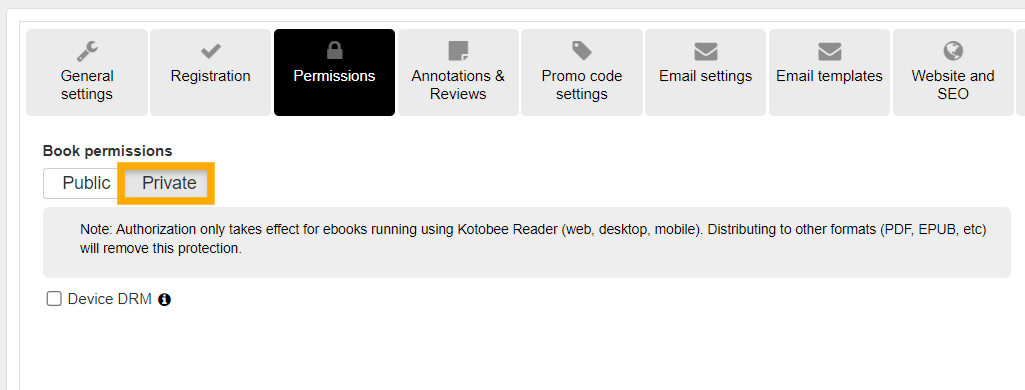
- In the Permissions tab, under Book permissions, click Private.
- Go to the Registration tab then check Self-registration.
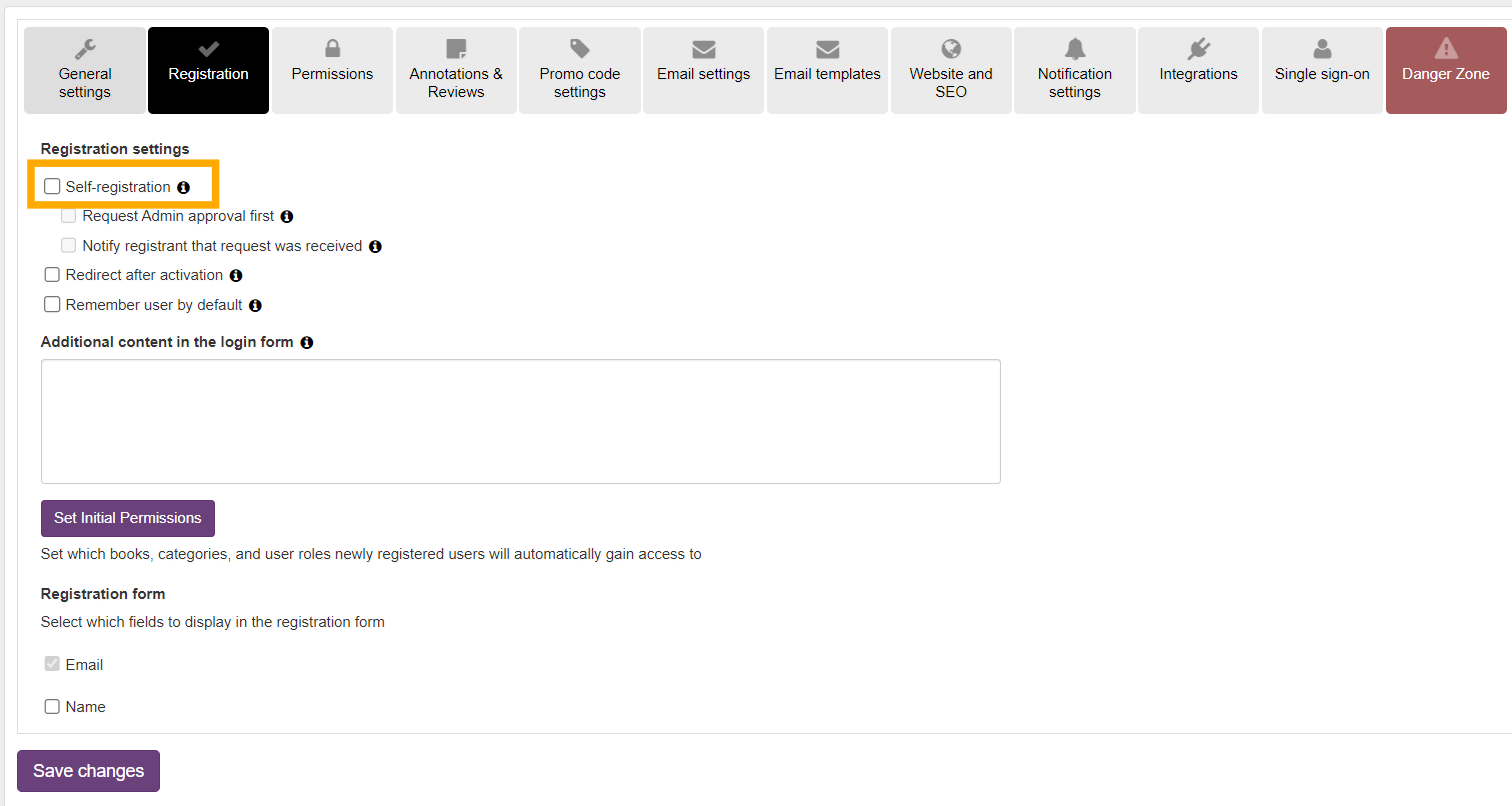
- Optional: Check Request Admin approval first if you want to approve users, before granting them access to your library.
- Click Save changes.
A confirmation window will appear. "The changes have been saved successfully."
When enabled, users will be prompted to enter their details and create an account before accessing the library.

Customize Registration Fields
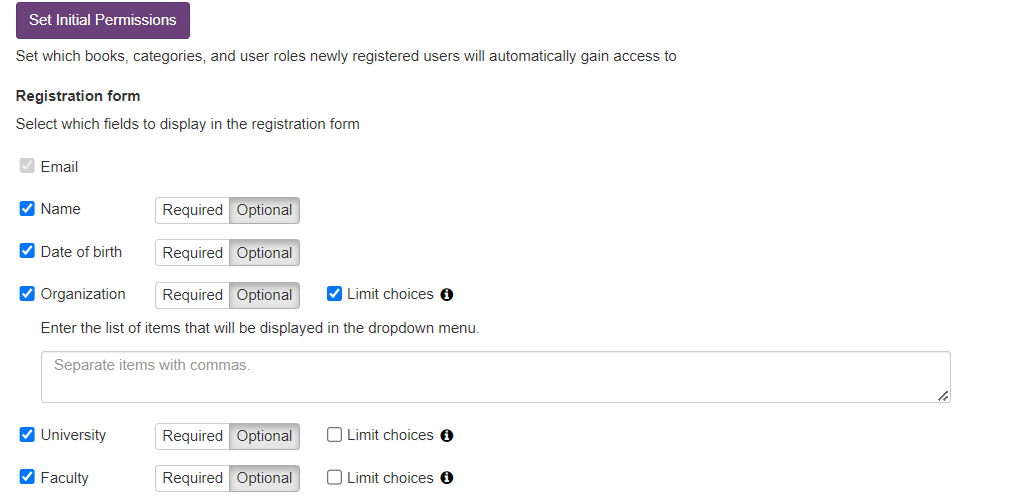
You can customize the registration form to collect additional details from users. In the Registration form section, select or unselect fields such as Name, Organization, or Country, and set whether each field is required or optional.
For some fields, you can also select Limit choices. This lets you create a predefined list of options that will appear in a dropdown menu, ensuring users provide consistent answers (e.g., choosing from a list of departments or grade levels).
Custom User Registration Fields
In addition to the standard registration fields, Kotobee Library allows you to create custom user registration fields to collect additional information during signup.
These custom fields appear alongside the default registration fields and can be fully customized to suit your needs.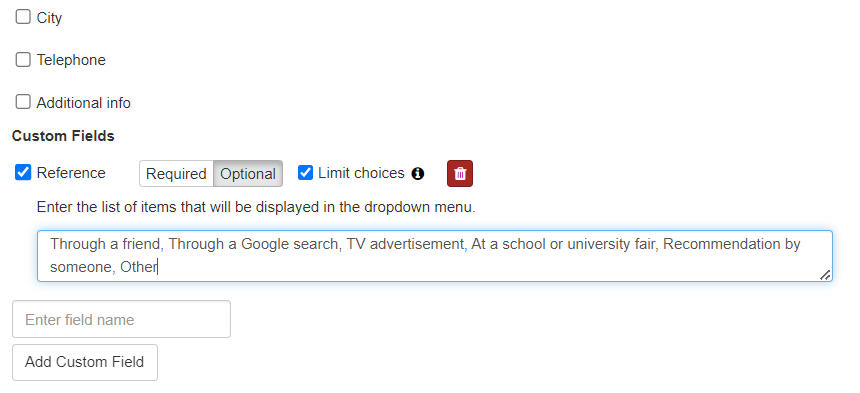
Creating a custom registration field
- Go to your Library settings.
- Open User Registration.
- Locate the Custom Fields section.
- Click Add Field.
- Enter a field name as it should appear on the registration form.
- Choose the field type:
- Text – allows users to enter open text.
- Dropdown – allows users to select from a predefined list of options.
- If using a dropdown field, enter the available options.
- Save your changes.