
Learn how to set the page animation in your library app. Kotobee Reader provides four ways for your pages to turn.
- Click on the Manage tab.
The Manage screen will open.
Click on Libraries in the left panel.
Select your library from the drop-down list in the top bar.
Select Customize from the Libraries menu in the left panel.
Click on the Display tab.
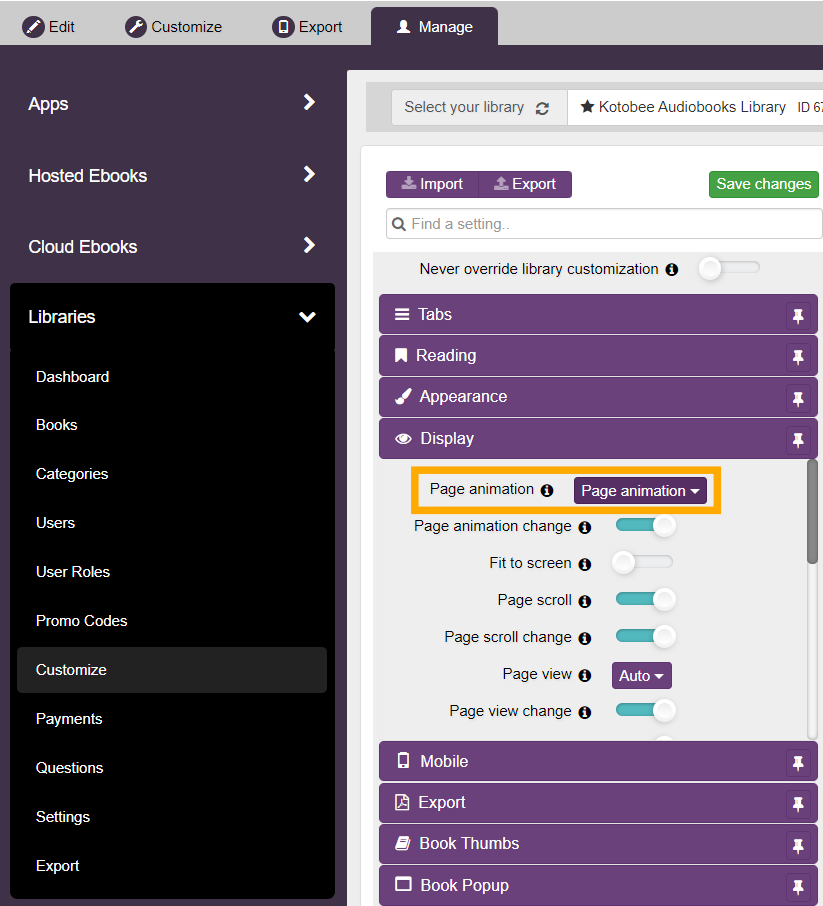
Select one of the available options from the drop-down menu next to Page Animation:
Page Flip: Adds a realistic page-turning effect that mimics flipping through a physical book.
Hardcover Flip: Simulates a rigid, book-cover style page turn with a firmer visual feel.
Card Flip: Flips pages like cards, creating a sharp, two-sided transition.
Slide: Slides pages horizontally as the reader moves between pages.
Stack: Stacks pages on top of each other during navigation.
Fade: Smoothly fades one page into the next.
Click on Enable next to Page Animation change if you want your readers to be able to change the page animation.
- Close all customization tabs.
- Click Save changes.
And there you have it, you're done.