
Learn how to integrate your cloud ebook or library with JSON Web Tokens (JWT) to integrate with your external website or provide users with a single link for login
What is JWT
JSON Web Tokens (JWTs) are a secure, compact way for a website or app to prove who you are and what you’re allowed to access after you sign in. This token contains information like your user ID, permissions, or expiry time, and can be sent in several ways. In the case of Kotobee, it is attached to the URL, providing you with a single URL to authorize the user securely. Because JWTs are digitally signed, they can't be tampered with without detection, making them great for authentication.
Steps to Use JWT SSO
Enabling JWT SSO for your cloud ebook or library is extremely simple.
Open Kotobee Author. Go into your library or cloud ebook settings, and click on the SSO tab. Click on the Enable button under JWT.
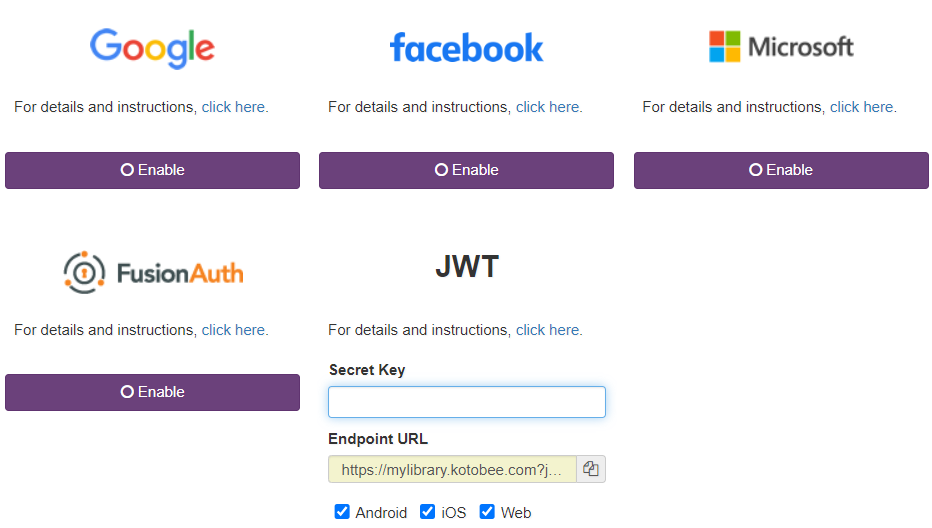
The only configuration needed is a Secret Key which you will decide by yourself. This is the key that will be used to encrypt and decrypt the JWT. Enter the secret key and hit Save Changes. Now your library or cloud ebook is ready to accept signing in using JWT, and all that is needed is to create a link that will use this JWT. The Endpoint URL shows you what that link will look like.
Steps to Generate a JWT Link
A JWT link can be created in two ways. If you are integrating with an existing website/system, then you will need to generate the JWT manually on the fly. If you are sharing the link with specific users where you know their emails beforehand, then you can use our JWT Link Builder.
Generating with a Known Email
- Go to https://jwt.kotobee.com.
- Enter your library or ebook URL.
- Enter your secret key (the same one stored in your library or cloud ebook settings).
- Enter the email address of the user. Note if the user doesn't have an account then one will be automatically created for him once he visits the link.
- Click Generate, and your link is ready for use.
[For libraries only]
You may optionally specify in the JWT the permissions that the user will receive. Fill in the rest of the information and the user will automatically receive the relevant permissions.
Generating with an Unknown Email (Advanced)
In your system code, once you capture the user's email, you are ready to generate the JWT link. You will need to generate a JWT with the following properties:
- Add a custom claim named "email" set to the user's email.
- Sign the JWT with your secret key using HS256 encryption.
- Append the signed JWT to the library or ebook URL as a GET variable named "jwt".
[For libraries only]
Here are additional claims you can add to the JWT that will add certain permissions to the user.
| Claim | Description |
| all | If true or 1 will allow the user to receive permissions over the entire library. |
| books | Either a single number specifying the Book ID that the user will receive permission to, or an array of Book IDs in this format [12,18, 23] etc. This ID can be found through Kotobee Author. |
| categories | Similar to books, but representing category IDs. This ID can be found through Kotobee Author. |
| role | A single number representing the User Role ID that should be assigned to the user. This ID can be found through Kotobee Author. |